Linking products lets your store's orders be processed automatically upon purchase.
Verifying the Player ID Field Setup in Salla
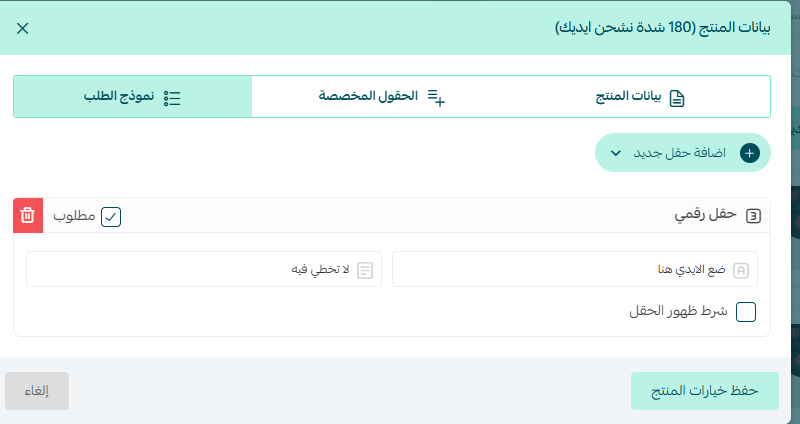
The product must include a field for entering the Player ID. To verify or add the field:
- Open the product details in Salla
- Go to "Order Form"
- Click "Add New Field"
- Select "Numeric Field" from the dropdown menu
- Enter the field name (e.g., Player ID)
Getting the Product Link from Salla
- Log in to your Salla dashboard
- Go to "Products"
- Select the product you want to link
- Open "Product Details"
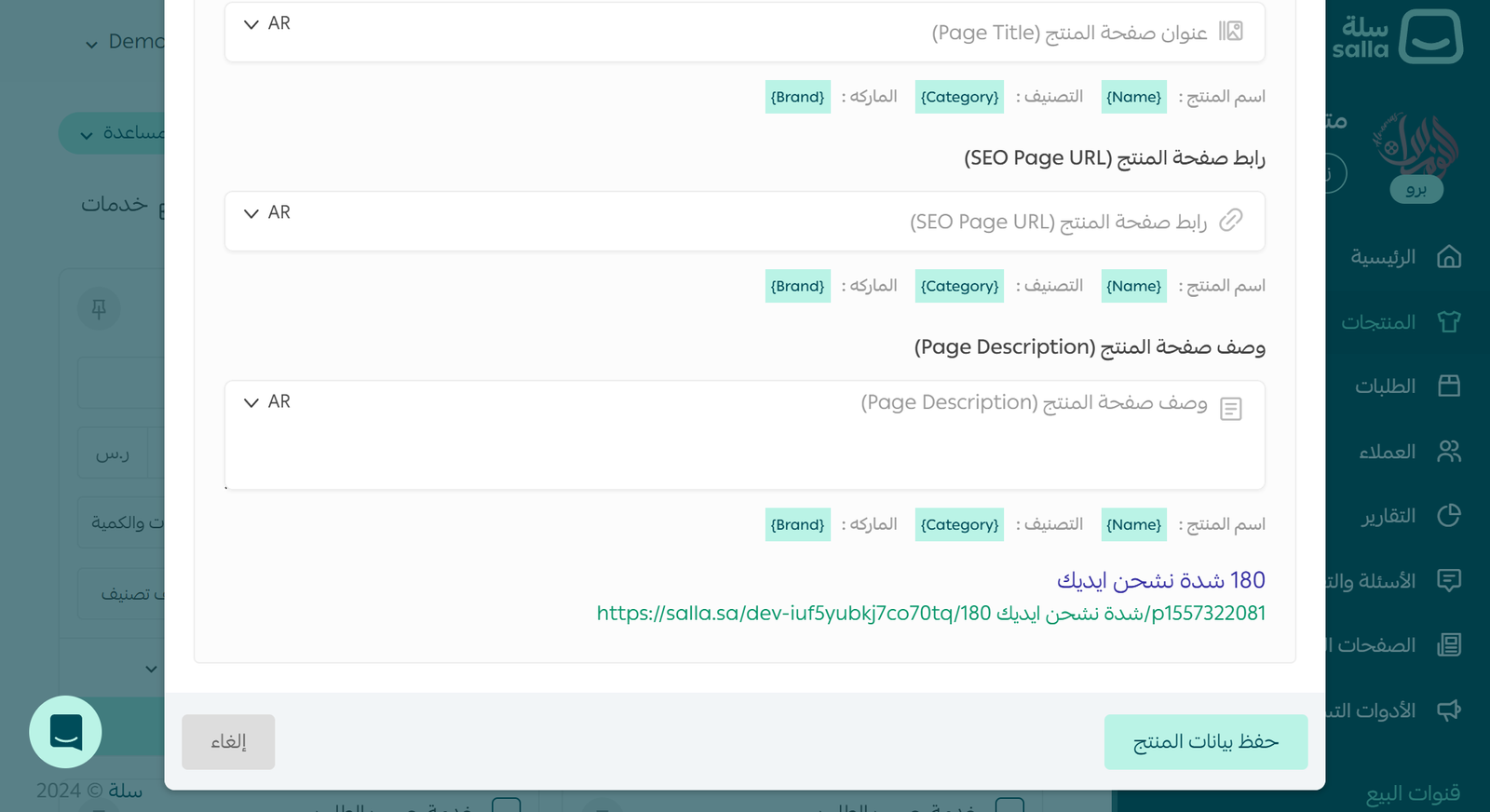
- Scroll down to the SEO section
- Copy the product link
Linking the Product in PayCard
- Log in to your PayCard dashboard
- Go to "Product Mapping"

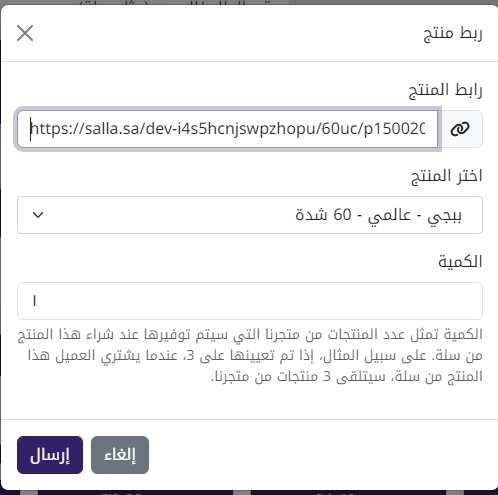
- Click "Link Product"
- Paste the Salla product link
- Example: https://store-name.com/product-name/p1234567890
- Select the corresponding Alnomas product
- Set the quantity:
- A number representing how many units the buyer will receive
- Example: a quantity of 3 means the buyer receives 3 units per order
- Click "Submit"
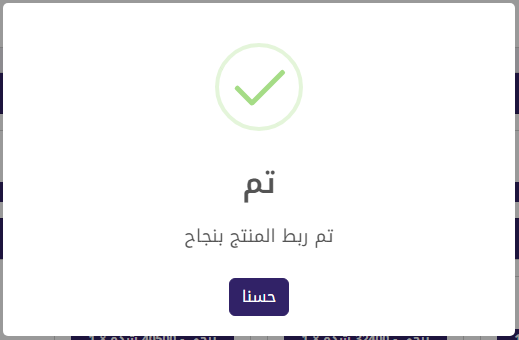
Verifying the Link
The linked product will appear in the "Linked Products" table with:
- Product name in Salla
- Product ID in Salla
- Corresponding PayCard products
- Specified quantity
- Activation status
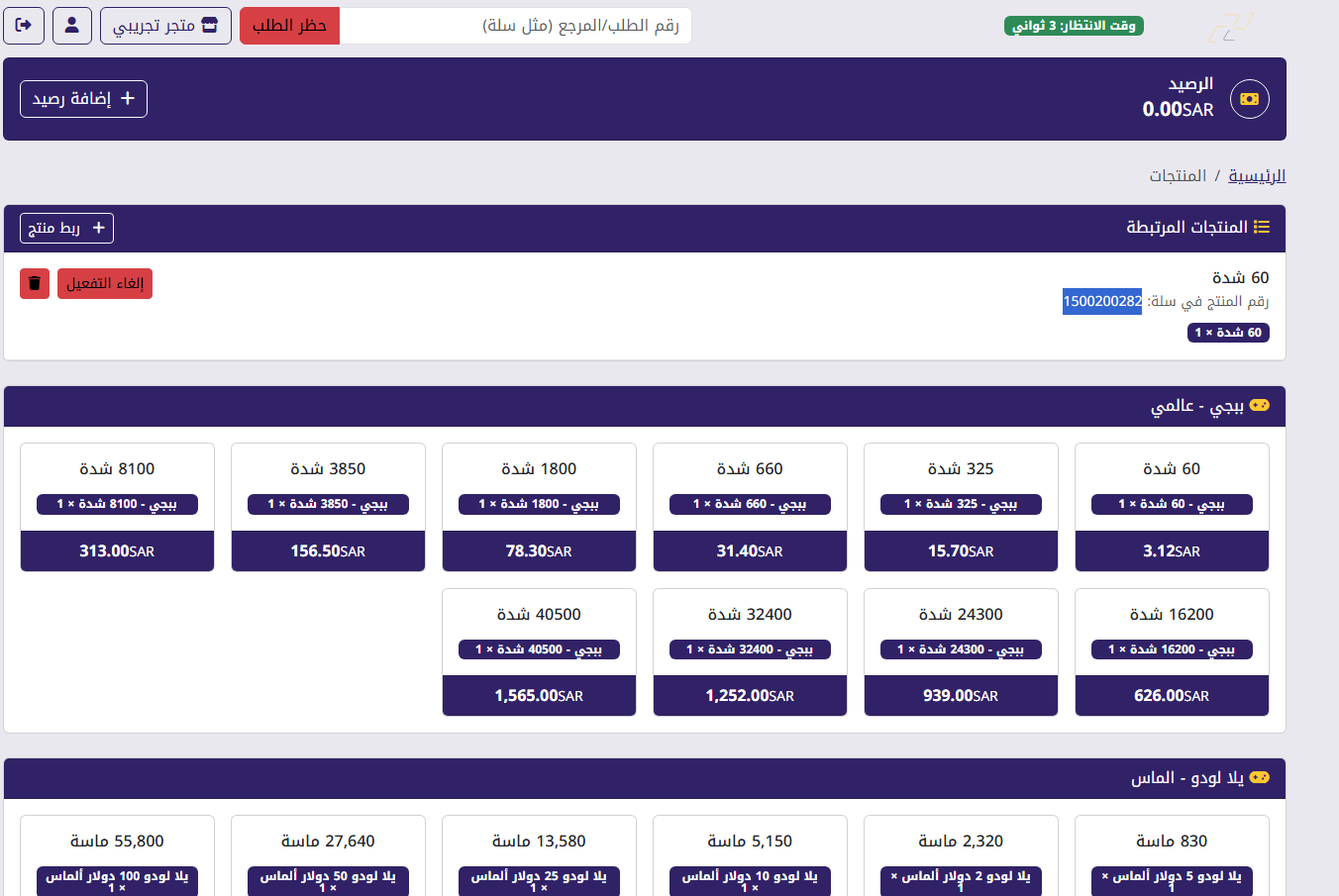
Linked Products
Watch the Video Tutorial
https://e.top4top.io/m_3426nw7r80.mp4
In the following video, we walk through linking products in PayCard Partners, from setting up the Player ID field in Salla to verifying the link in practice:
⚡ Tip: Make sure to activate the product after linking it so orders start being processed automatically.
❗ Important: Make sure the Player ID field is required in the order form to ensure you receive the correct information.
❓ Need help?