The PayCard app is installed on your Salla store through the Salla App Store.
Installing from the Salla App Store
- Log in to your Salla dashboard
- From the dashboard sidebar, click "Installed Apps"
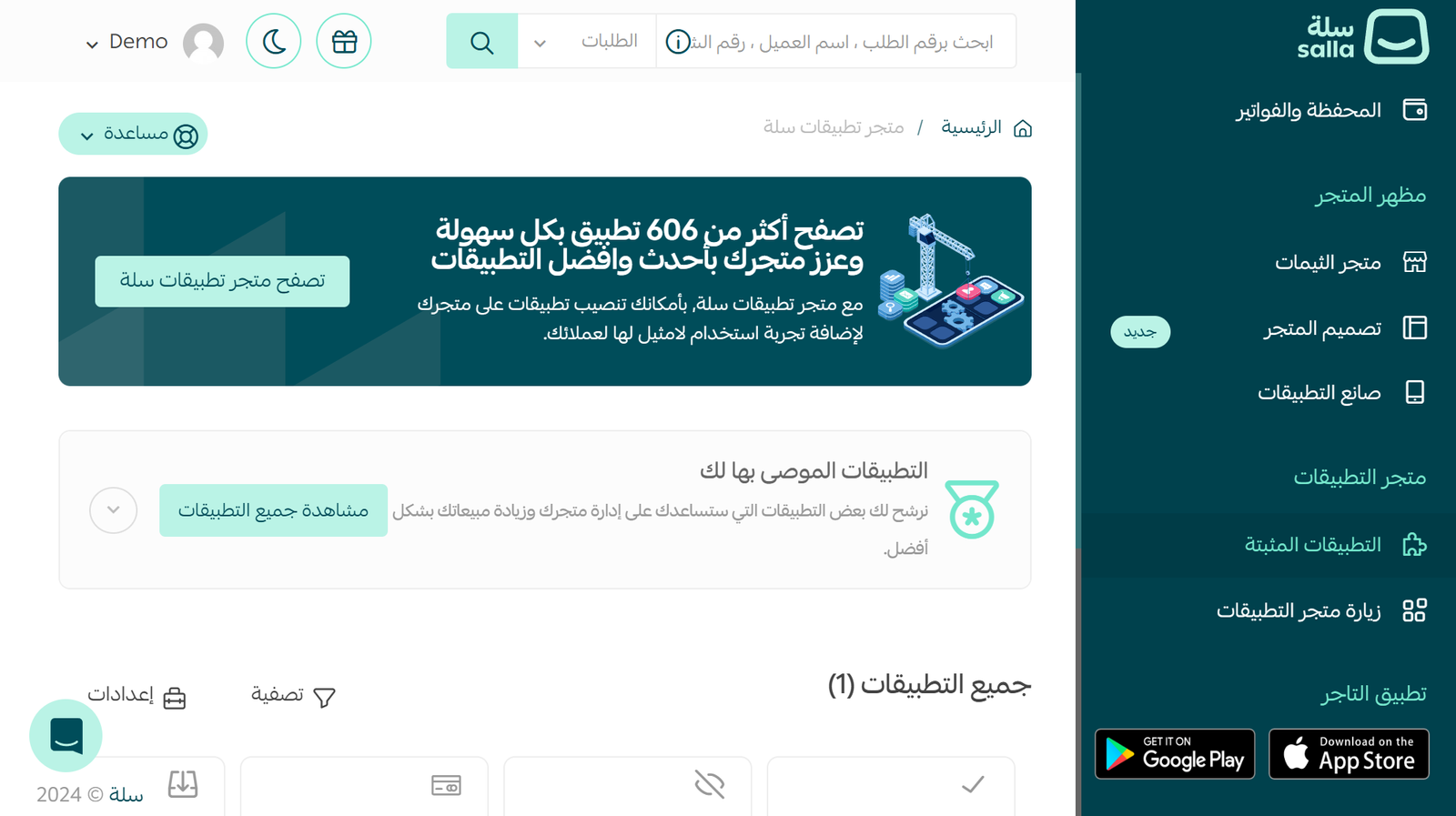
- Click "Browse Salla App Store"

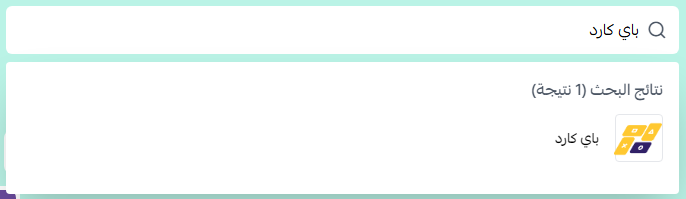
- Search for "PayCard"
- Click "Install"

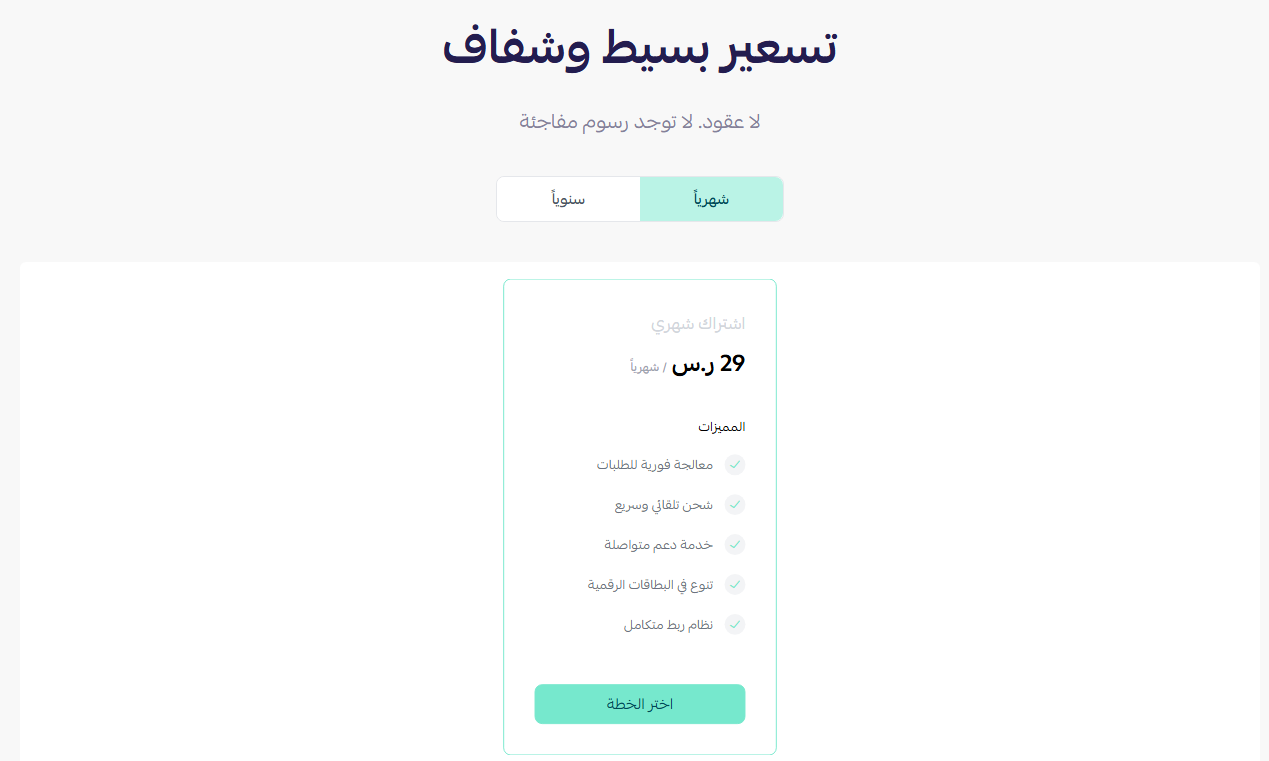
- Choose the plan that suits your store
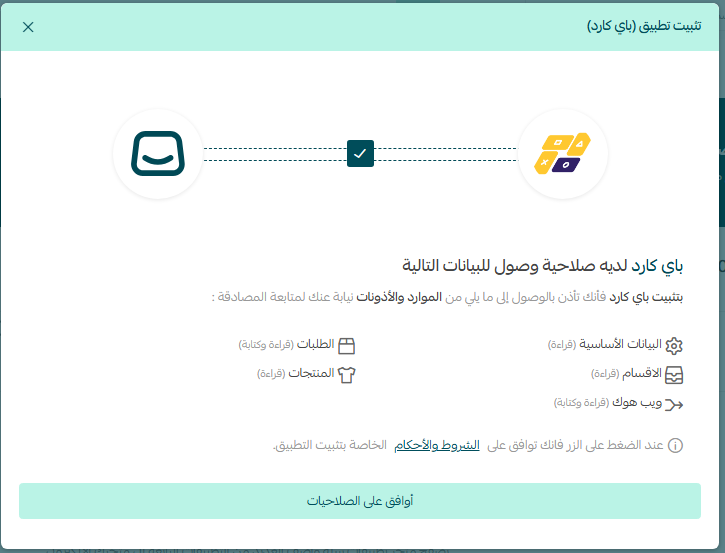
- Review the required permissions
- Click "Proceed to Payment"
- Complete the payment
Activating Your PayCard Account
Once installation is complete:
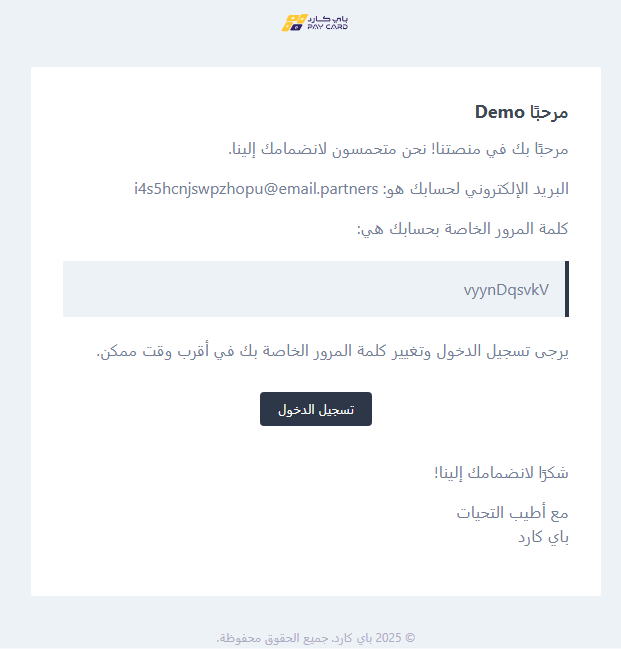
- You will receive an email from PayCard
- Open the email
- Follow the login link
- Use the login credentials included in the email
After logging in, you will be taken directly to the PayCard Partners dashboard, where you can:
- Top up by Player ID
- Buy codes
- Link products

PayCard Partners dashboard
Watch the Video Tutorial
Watch the following video for a detailed step-by-step walkthrough of installing and setting up the PayCard app on your Salla store:
🔔 Note: If you don't receive the email, check your junk (Spam) folder.
⚡ Tip: Keep your login credentials in a safe place for future reference.
❓ Need help?